
PDF collage
Navigation: main menu → Image Display → Upload in the image gallery → Upload PDF
A PDF collage arranges several pages of a PDF in a grid and turns them into one (or more) images that fit the panel. Use it to put notices, menus, price lists, meeting materials and similar documents straight onto the signage, in place of a physical bulletin board.
The resulting images work exactly like any other uploaded image: they appear in the image gallery, and you can add them to an image set, rotate them through a schedule, rotate them, or change their fit mode.
Limits
| Item | Limit | Message when exceeded |
|---|---|---|
| File format | PDF only | Not a PDF file (content-type: …) |
| File size | 50 MB | PDF file is X.XMB, over the 50MB limit |
| Total pages in the PDF | 60 pages | PDF has N pages, over the 60-page limit |
| Pages you can select at once | 30 pages | You can select up to 30 pages (appears only when you press "Next") |
| Files per upload | 1 | — |
| Encrypted (password-protected) PDFs | Not supported | An error message in English is shown |
| How long an unfinished collage is kept | 4 hours | PDF session not found: … |
Very large files
A file larger than 50 MB is still uploaded to the device in full before it is rejected, which can take a while over a phone connection. Check the file size first, or use a PDF tool to keep only the pages you need before uploading.
Steps
1. Upload the PDF
- In the image gallery, press Upload → Upload PDF.
- Select one PDF file.
- While uploading, "Uploading PDF…" is shown. The system creates a thumbnail for each page, which takes a moment when there are many pages.
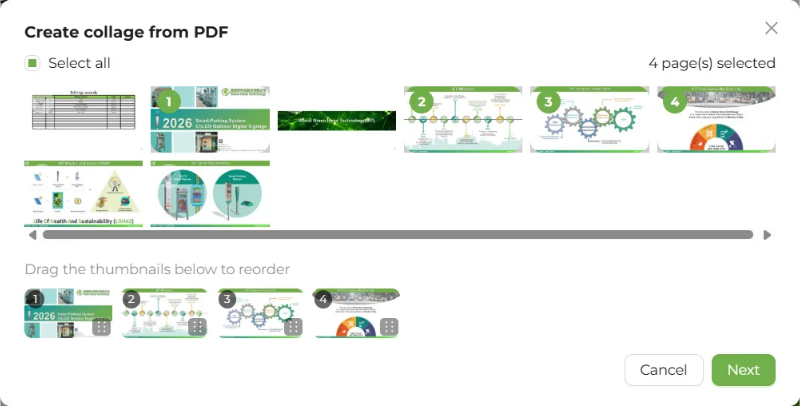
- When it finishes, the "Create collage from PDF" window opens.
If the upload fails, the reason is shown; if there is no reason, "PDF upload failed" is shown.
2. Select pages and their order
- The window lists thumbnails of all pages. Tap the pages you want in the collage. A selected thumbnail shows its selection order in the top-left corner.
- To use every page, check Select all (check it again to switch to "Deselect all"). The right side shows "N page(s) selected".
- Once you have selected pages, a sorting area appears below (with the hint "Drag the thumbnails below to reorder"). Drag a thumbnail to change its position in the collage (press and move slightly before dragging starts).
- Press Next. If no page is selected, you are prompted "Please select at least one page".
3. Adjust the layout and preview
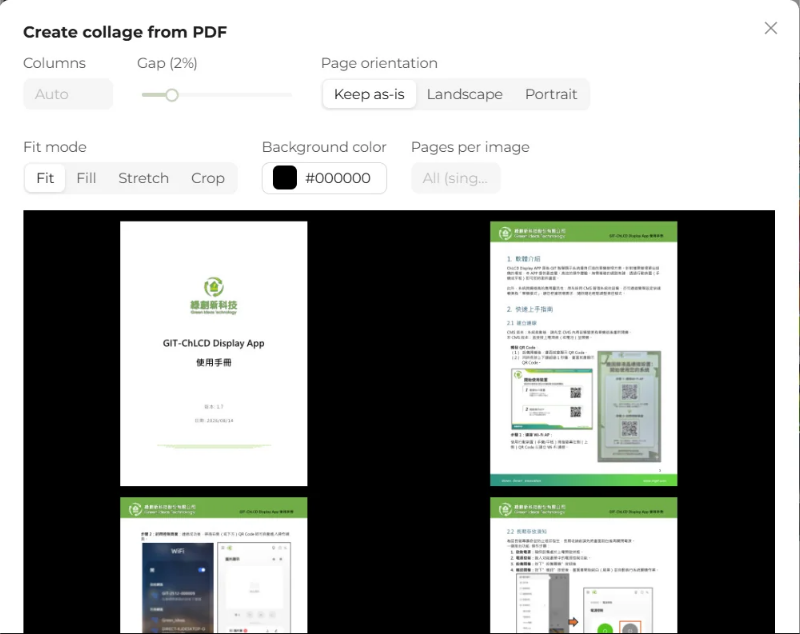
Step 2 generates a preview automatically. Every time you change an option, the preview is regenerated, and the options are briefly unavailable while it is being generated.
| Option | Default | Range | Description |
|---|---|---|---|
| Columns | Auto | 1 to the number of selected pages | Leave blank for automatic: the system picks the layout with "the fewest empty cells and cell proportions closest to the page proportions" |
| Gap (N%) | 2% | 0 to 10%, in steps of 0.5% | Spacing between pages and around the outer edge, as a percentage of the short side of the screen. 0 means no gaps at all |
| Page orientation | Keep as-is | Keep as-is / Landscape / Portrait | Forces every page into landscape or portrait. Useful for laying out portrait A4 pages in landscape, or the other way around |
| Fit mode | Fit | Fit / Fill / Stretch / Crop | How each page is placed in its own cell; works the same as fit mode |
| Background color | Black | Any color; "Common colors" offers black, white, and gray | The color of the collage background and the blank space in cells |
| Pages per image | All (single collage) | 1 to the number of selected pages | Leave blank to combine all pages into one image; enter a number to make one image for every N pages |
- When "Pages per image" is set to fewer than the selected pages, you see "N page(s) selected, will create M image(s) (previewing image 1)". Only the first image is previewed; the others are created with the same layout rules.
- The collage background and blank space in cells follow "Background color", black by default. The color you pick is remembered in the browser on this phone or computer and used again for your next collage.
- You can tap the preview image to enlarge it.
- If the preview fails, the reason is shown, or "Failed to generate preview".
4. Create
- When the preview looks right, press Create.
- On success, "N image(s) created" is shown, the window closes, and the new images appear at the front of the image gallery.
- To change the pages, press Back. Your selected pages and their order are kept.
If you press Cancel or close the window, the temporary data for this PDF upload is deleted as well.
The resulting images
| Item | Description |
|---|---|
| Size | The effective screen size at the time of creation (taking the device's orientation into account) |
| Format | JPG |
| File name | The uploaded PDF's file name, for example menu.jpg; when split into several images, menu-1.jpg, menu-2.jpg, … |
| Rotation / fit mode | 0° / Fit (same as any newly uploaded image) |
Set the device in its final orientation first
The size of a collage image depends on the device's orientation when you create it. Place the device in the orientation it will actually be displayed in (landscape or portrait) before creating the collage. If you turn it afterward, the collage is rescaled like any other image and may show black bars.
Layout tips
| Content | Suggested settings |
|---|---|
| Single-page poster | Select only 1 page, fit mode "Fit" |
| 2 A4 pages on a landscape panel | 2 columns, gap 1–2% |
| 4 A4 pages on a portrait panel | 2 columns (2 × 2), gap 1% |
| Many pages, small text | Use "Pages per image" to split them into several images, then rotate them with an image set |
Text on the panel must be large enough to read. The more pages you combine, the smaller each page becomes; check readability on the actual device, and reduce the pages per image if the text is too small.
FAQ
Q: "Lost connection to the device" appears while uploading a PDF? When a large file takes more than 60 seconds to upload over a phone connection, the web page assumes the connection has dropped. The device may actually still be processing it. Make the PDF smaller (delete pages you don't need, lower the resolution of embedded images) and upload it again.
Q: Two people uploaded PDFs at the same time, and one of them failed? Processing several PDFs at once can cause them to interfere with each other. Have one person upload at a time, and start the next file only after the previous one is done.
Q: The collage was left open for a long time without confirming, and then "PDF session not found" appeared? An unfinished collage is kept for 4 hours, and restarting the device also clears it. Upload the PDF again.
Q: "Creation failed" appears when I press Create? Upload the PDF again and repeat the steps (the temporary data from this upload has been deleted, so you can't continue from the previous step). Afterward, check the image gallery and delete any collage images you don't need.