
Software update (OTA)
Navigation: Settings → System → Software Update
A software update adds new features and fixes problems on the device. The whole process is done in the management interface: first download the update file to your phone or computer, then connect back to the device and upload it.
Before you update
| Item | Description |
|---|---|
| Download the update file | Download the latest version from the Downloads page of this site. The file name is chlcd-update-v<version>.tar.gz (about 35 MB) |
| Check the current version | Write down the current software version in Device info |
| Power | Make sure power won't be cut during the update; on battery models, check that the battery is sufficiently charged or plug in the power first |
| Storage | Make sure the device's storage is not over 90% |
| Connection | Stay close to the device with a good signal (the roughly 35 MB file is uploaded twice) |
Downloading needs internet access
The device's hotspot has no internet access. Download the update file to your phone or computer somewhere with internet access first, then connect to the device's Wi-Fi to update.
Safari on Mac
Safari may automatically unpack a .tar.gz into a folder or a .tar file after downloading, and then it can't be uploaded. In Safari, go to "Settings → General" and uncheck "Open 'safe' files after downloading", or use Chrome to download.
The page
The Software Update page has three sections from top to bottom:
- What's New in This Version: the release notes for the currently installed version, with the current version in the upper right. Shown in the management interface language, or in Traditional Chinese if that language isn't available.
- OTA System Update: where you upload the update file.
- Factory Reset: the red section. See Factory reset.
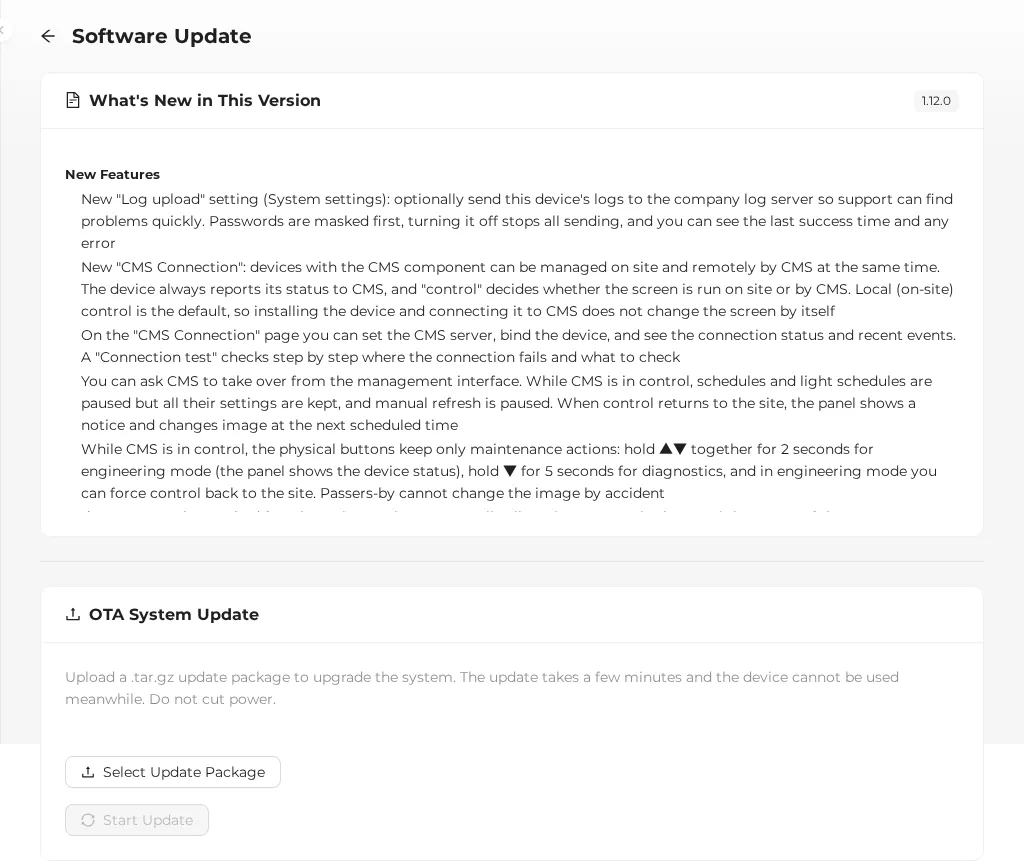
The version number in the upper right of the screenshot is hidden; the actual screen shows the current version.
Update steps
- Press Select Update Package and choose the downloaded
.tar.gzfile.- If the file name doesn't end in
.tar.gz, "Please select a .tar.gz update package" appears.
- If the file name doesn't end in
- "Selected: file name" and "Reading update package info..." appear. At this point the system uploads the file once and reads the package contents.
- When reading is done, a preview appears:
- Version:
current version → new version - What's New: the release notes for the new version
- Version:
- Press Start Update.
- In the confirmation window "Update system to version X.Y.Z? The device will reboot during the update — do not cut power.", press Confirm Update.
- Upload progress (percentage) is shown.
- When the upload finishes, a waiting screen appears: "Installing update, please wait..." "Will reconnect automatically after reboot".
- When it's done, the result appears automatically.
Don't cut power or close the page during the update
The waiting screen waits up to 5 minutes. During that time, keep the device powered, keep your phone connected to the device's Wi-Fi, and don't close the page.
Update result
| Result | Screen | Next step |
|---|---|---|
| Success | Green check "Update Successful", "Updated to version X.Y.Z", and the new release notes | Press Back; the page reloads automatically into the new interface |
| Failure | Red cross "Update Failed", with the reason for the failure in the subtitle | The device automatically goes back to the original version; check the actual version in Device info. See "If the update fails" below |
| Can't confirm | Yellow "Update Result Unconfirmed": "The device restarted but no update record could be read. Current version is X.Y.Z; please verify under Device Info." | Check in Device info whether the software version is the new version |
| Connection timed out | "Connection timed out: the device still can't be reached after 5 minutes. Please check the device status manually." | See "If the connection times out" below |
- "Updated to version X.Y.Z" is shown only when the update succeeds.
- If the update is rejected before installation starts (for example, the current version is too old, there isn't enough storage, or the model data check didn't pass), "Update Failed" appears right away with the reason; you don't have to wait 5 minutes. In this case nothing on the device has been changed.
- The reason for the failure is given in the interface language, for example "Not enough storage space: 250 MB needed, only 80 MB free. Delete unused photos and try again" or "Updating the database failed. The device is back on its previous version". Include this text when you contact technical support.
- When updating from a version before 1.11.0, the result page is shown by the old version you're updating from, so the reason is still a technical message in English.
What the device does during the update
- Checks whether the current version can be upgraded directly to the new version.
- Checks whether there is enough storage. If not, it first clears temporary files left by the updater itself; if there still isn't enough, it doesn't update and the device stays as it is.
- Checks whether this device's model data can be carried over; if anything is missing or doesn't make sense, it doesn't update and the device stays as it is.
- Backs up the current version.
- Pauses the management program (the management interface disconnects for a while; the Wi-Fi hotspot stays up, and the status LED turns off).
- Installs the new program and required components (the new version uses a separate program environment; the original version's program and components are kept untouched).
- Upgrades the database structure (all data is kept).
- Updates the management interface files.
- Restarts the management program and confirms it works (waits up to 90 seconds).
- Records the result once it's confirmed; if any step fails, it restores automatically to the version before the update.
- The update only restarts the management program; it doesn't reboot the device, so your phone usually stays connected to the Wi-Fi.
- Exception: the first time a unit from an earlier production batch is updated to 1.13.2 or later, the system first adjusts one setting, the device restarts once by itself, and the update finishes automatically after startup. Start the update once; the whole process takes about 6 minutes. Don't cut power; your phone will lose the Wi-Fi connection for a while. Later updates don't restart the device.
- When the management program restarts, if "Show QR Code startup screen on boot" is on, the panel shows the startup screen (refresh time depends on the model and refresh mode, for example about 6 seconds on 13.3-inch, about 16 seconds on 27.6-inch, about 20 seconds on 32-inch). After that, the schedule takes over, or you display an image manually.
What's kept after an update
| Item | After the update |
|---|---|
| Uploaded images | Kept |
| Image sets, schedules, light schedules | Kept |
| All settings (sleep, buttons, G-Sensor, startup screen, refresh mode…) | Kept |
| Installation settings such as model and screen language | Kept; settings added in the new version are filled in with default values |
| Wi-Fi hotspot name and password | Kept. Devices already shipped do not switch to a per-device factory hotspot password after the update |
| Time zone and time | Kept |
| System logs | Kept |
If the update fails
When an update fails, the device automatically:
- Rolls the database structure back to the version before the update.
- Switches back to the program from before the update and the components it uses.
- Restarts and confirms it works.
Your images, schedules, and settings are not affected. We recommend:
- Checking in Device info that the version is back to what it was before the update, and reading the reason for the failure on the result screen.
- Making sure the file is a complete file downloaded from the official website; download it again and retry.
- If it still fails, write down the current version, the version you're updating to, and the time of the failure, and contact technical support.
If the connection times out
If the device still can't be reached after waiting more than 5 minutes, possible causes are:
| Cause | What to do |
|---|---|
| Your phone has left the device's Wi-Fi | Reconnect to the device's Wi-Fi and check the version in Device info |
| The update is taking longer | Wait a few more minutes, reload the page, and check the version in Device info |
| First update to 1.13.2 or later on a unit from an earlier production batch (the device restarts once by itself; about 6 minutes in total) | The update is still running; don't cut power. After the device has restarted, reconnect to the device's Wi-Fi and check the version in Device info |
| The device's current version is too old (before 1.6.5) to upgrade directly | The device keeps running the original version. Install the 1.6.5 update file first, then update; see Download updates |
| Device problem | Check the status LED and the panel, and contact technical support |
"Start Update" stays grayed out after choosing a file
If the version preview never appears after you choose a file, and "Start Update" can't be pressed:
| Message on screen | Cause |
|---|---|
| This file is not a valid update package. Please check that the download is complete | The file isn't a valid update package (for example, you downloaded the installation package, or the file is incomplete), or the connection dropped during upload |
| The update package is larger than 128 MB and cannot be used | The file is too large (official update packages are never that large) |
Download the update file again, move closer to the device, and try again.
Can I downgrade?
Update packages aren't limited to upgrades, but installing a version older than the current one is not recommended. An older program may not understand the newer data structure, so installation fails and is rolled back automatically. If you need to downgrade, contact technical support first.
Messages
| Message | Meaning |
|---|---|
| Please select a .tar.gz update package | The file name isn't .tar.gz |
| Please select an update package first | No file has been selected yet |
| This file is not a valid update package. Please check that the download is complete | The update package contents can't be read |
| The update package is larger than 128 MB and cannot be used | The file is too large |
| Upload failed: The update package is larger than the 128 MB limit | The file is too large; it isn't a valid update package |
| Upload failed: Checksum mismatch… | The file is damaged or incomplete; download it again |
| Upload failed: The update package has no manifest.json | It isn't a valid update package |
| Update Successful / Update Failed / Update Result Unconfirmed | Update result |
| Connection Timed Out | The result couldn't be confirmed within 5 minutes |
Related sections: Downloads, Device info and monitoring, Troubleshooting: updates and maintenance