
Status LEDs
The status LED on the front of the device shows different patterns depending on what the device is doing, so you can tell the device's state without looking at the screen.
Depending on the model, there are two kinds of LED hardware: two single-color LEDs (frameless 27.6 / 32-inch, gray-black frame 24.8 / 27.6 / 32-inch) and a full-color LED (13.3-inch white models). Bus-stop frame models (13.3 / 24.8 / 27.6 / 32-inch) have no status LED.
Two single-color LEDs
Applicable versions
Applies to management program version 1.7.2 and later.
These models have two green LEDs: the lights of the two buttons "Pg Up" and "Pg Dn" on the control panel on the side of the device (lit green in the figure below). The upper "Pg Up" is the Previous button, and the lower "Pg Dn" is the Next button. In most states the two LEDs change together:
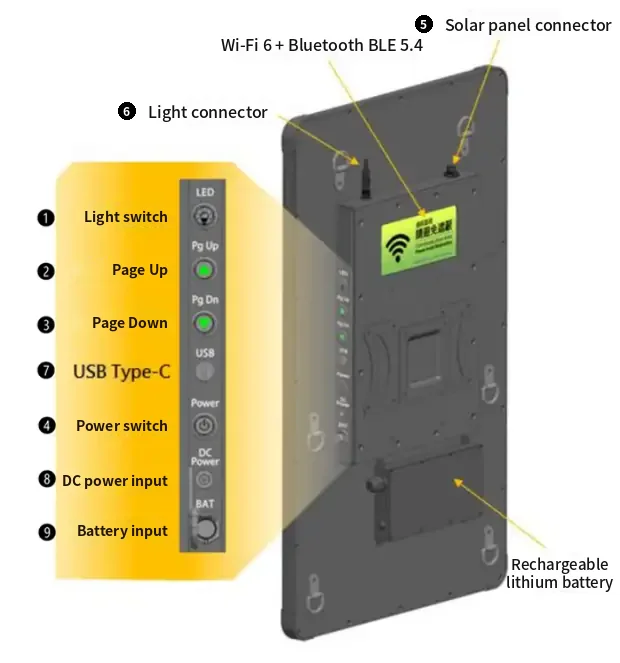
| State | LED pattern | Description |
|---|---|---|
| Standby | Solid on | The device is in normal standby |
| Refreshing | Breathing | The panel is refreshing; how long it takes depends on the model (see Additional notes below) |
| Starting up | Slow blinking | The app is starting |
| Sleep | Off | The device is in power-saving sleep |
| Device busy | 2 quick blinks | Another operation is in progress; try again shortly |
| Operation failed | 3 quick blinks | Displaying the image failed, or the image gallery has no images when switching with the buttons. Check the system logs |
| Factory reset in progress | Continuous fast blinking | A button has been held for more than 3 seconds; keep holding to 40 seconds to factory reset. Release to cancel |
When you press the Previous / Next button, only that button's LED breathes and the other stays off, so you can confirm which button you pressed:
| Button | LED pattern | Description |
|---|---|---|
| Previous | Upper "Pg Up" LED breathes | Switching to the previous image |
| Next | Lower "Pg Dn" LED breathes | Switching to the next image |
Full-color LED
Applicable versions
Applies to management program version 1.9.0 and later.
On the 13.3-inch model, the LED is next to the connectors on the back of the device, at the position labeled "Status".
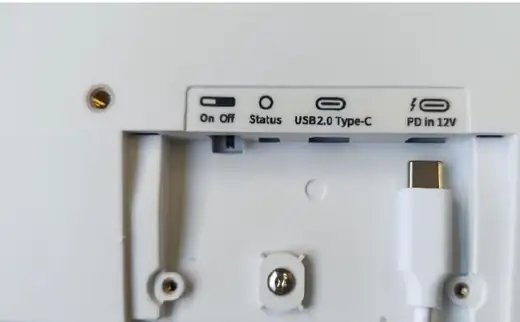
| State | LED color / pattern | Description |
|---|---|---|
| Standby | Solid green | The device is in normal standby |
| Refreshing | Blinking blue | The panel is refreshing, about 6 seconds |
| Starting up | Slow blinking white | The app is starting |
| Sleep | Off | The device is in power-saving sleep |
| Device busy | 2 quick orange blinks | Another operation is in progress; try again shortly |
| Operation failed | 3 quick red blinks | Displaying the image failed, or the image gallery has no images when switching with the buttons. Check the system logs |
| Factory reset countdown | Continuous fast red blinking | A button has been held for more than 3 seconds; keep holding to 40 seconds to factory reset. Release to cancel |
| Factory reset in progress | Solid red | A factory reset is running; do not cut power |
Additional notes
- "Device busy" and "Operation failed" are one-time signals; after blinking, the LED returns to its previous state (usually standby).
- Refresh time varies by model and refresh mode, for example about 6 seconds on 13.3-inch, about 16 seconds on 27.6-inch, about 20 seconds on 32-inch.
- When you use a button gesture to clear the screen or show the QR code, both LEDs breathe together on models with two single-color LEDs; only a single press to switch to the previous / next image lights just the side you pressed.
- During a software update (OTA), the management program stops for a while and the LED turns off; when the update finishes and the program restarts, it shows the "Starting up" blinking.
- "Starting up" ends as soon as the APP has finished starting, and the LED switches to standby; the same applies to devices with the startup screen turned off, which no longer stay in "Starting up".
- When you change images with a physical button or presenter remote while the previous image is still refreshing, "Device busy" isn't shown; instead, depending on the "When changing pages" setting, the current refresh is stopped or the device waits for it to finish. See Physical buttons and gestures.
- For the factory reset countdown, see Physical buttons and gestures.
- On models without a status LED (bus-stop frame models: 13.3 / 24.8 / 27.6 / 32-inch), none of the states above are shown; check the management interface instead.