
Schedules
Navigation: Main menu → Schedule
Schedules let the device change images automatically by time. Each schedule is tied to one image set and one "change frequency". Each time it's due, the screen changes to the next image in the image set.
How it works
Once you understand these points, you'll understand everything schedules do:
- Each trigger changes only one image. A schedule doesn't "play continuously during a time range"; it "moves to the next image at each point in time". For example, "Every 10 min" means the image changes every 10 minutes.
- Loops through the image set in order. It starts from the first image and goes back to the first after the last one. See How an image set decides the "next" image.
- Multiple schedules run independently. All enabled schedules fire at their own frequency and don't replace each other.
- The panel handles only one image at a time. Refreshing one image on a cholesteric LCD takes a while (it depends on the model and refresh mode, for example about 6 seconds on the 13.3-inch, about 16 seconds on the 27.6-inch, and about 20 seconds on the 32-inch). Image change requests that arrive during a refresh are skipped; see Simultaneous triggers and skipped changes.
- Times follow the device's time zone. Schedules are calculated in the time zone set on the device, not your browser's time zone; see Time zone.
- Schedules are kept after a restart. Schedules are stored in the device's database and remain after a restart or power loss.
- They run on time even during sleep. A sleeping device wakes up automatically before the next schedule; see Sleep and wake-up.
Page overview
At the top right of the schedule page are two view buttons and the "New Schedule" button:
| Button | Description |
|---|---|
| Grid icon | Card view (default): one card per schedule, showing the next image to play and a countdown |
| List icon | Table view: lists all schedules with their detailed fields in a table |
| New Schedule | Create a new schedule (only the + icon at phone width) |
- The view isn't remembered; reloading the page returns to card view.
- The schedule list updates automatically every 30 seconds, and immediately after a schedule changes an image.
- When there are no schedules yet, "No schedules yet" is shown.
Card view
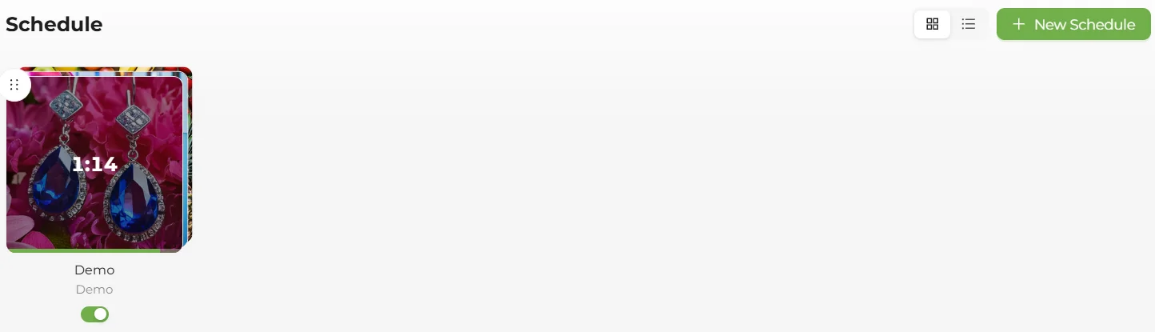
Each schedule is a square card:
| Location | Content |
|---|---|
| Card front | The next image to be played. The two cards stacked behind it are "the one after next" and "the one after that", so you can see the upcoming order at a glance |
| Center of the front | Countdown to the next image change (min:sec, or hr:min:sec if over 1 hour). The countdown fades out when you hover over the card so you can see the image clearly |
| Thin bar at the bottom of the card | Progress bar: grows from "the last image change" to "the next image change"; when it's full, the image changes |
| Round button at the top left | Drag handle for changing the order |
| Below the card | Schedule name ("Unnamed" if there's no name) and image set name |
| Small switch below the name | Enable/disable the schedule directly. One tap takes effect immediately; you don't need to open the edit window |
States that may appear on the card front:
| Shown | Meaning |
|---|---|
| Dark overlay + spinner | This schedule is refreshing the panel |
| Red ✕ (about 2 seconds) | This round's image change was skipped; see Simultaneous triggers and skipped changes |
| Gray overlay "Disabled" | The schedule is disabled and won't fire |
| Orange vignette | Predicted to fire at the same moment as another schedule; this one is ordered first and will run |
| Red vignette + "Conflict" | Predicted to fire at the same moment as another schedule; this one is ordered later and will be skipped this round |
| Image icon (no thumbnail) | The image set is empty, or no image set is selected |
Tapping the card (the image area) opens the "Edit Schedule" window. When an image finishes refreshing, the card plays a "card draw" animation and the next image moves to the front.
Table view

| Column | Description |
|---|---|
| Name | Schedule name; "Unnamed" if there's no name |
| Image set | Tappable; jumps straight to that image set's management screen |
| Change frequency | Describes the frequency in words, for example "Every 10 min"; shows the raw cron expression if it can't be parsed |
| Next Run | Date and time of the next image change (shown in the device time zone); shows "Paused" when the schedule is disabled. Hidden on narrower screens |
| Status | Enable/disable switch |
| Actions | "Edit" and "Delete" (only icons at phone width) |
The table lists schedules in their order, but you can only drag to reorder in card view.
"Disabled" and "Paused"
Card view says "Disabled", and the table's next run column says "Paused". Both mean the same thing: this schedule won't fire for now.
Create a schedule
- Tap New Schedule at the top right.
- Fill in the "New Schedule" form:
| Field | Required | Description |
|---|---|---|
| Schedule Name | Yes | For example "Daily Slideshow" or "Meeting Room Display". If left blank, you'll see "Please enter a schedule name" |
| Image set | Yes | Choose the image set to play. Options show "name (N images)", and you can type to search. If none is selected, you'll see "Please select an image set" |
| Change Frequency | Yes | Defaults to "Fixed interval: Every 10 min"; see Change frequency settings in detail |
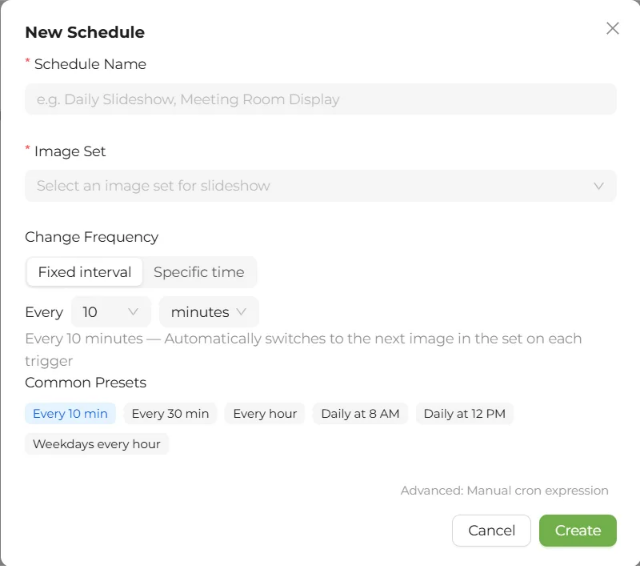
- Tap Create. On success you'll see "Schedule created".
New schedules are enabled by default and placed after all other schedules.
The image doesn't change right after you create a schedule
A schedule changes the image for the first time only at its next trigger time. With "Every 10 min", the times are :00, :10, :20… every hour; if you create it at 9:03, the first change happens at 9:10. To see a result right away, first display an image manually from the image gallery.
Create an image set and choose images in place
You can prepare an image set from the schedule form without leaving the page:
- Create an image set: open the "Image Sets" drop-down. At the bottom there's a "New image set name" box. Type a name and tap Create (or press Enter). On success you'll see "Image set created and selected", and it's selected automatically.
- Add images: after choosing an image set, Choose images appears next to the field label. Tap it to open "Choose images to add", check the images, and tap Add N. On success you'll see "Added N image(s)". You can only add images here; to remove or reorder them, go to the image set page.
- Edit an image set: Edit Image Set next to the label jumps to the image set management page. This leaves the schedule page, and any unsaved form content is lost.
When you choose an empty image set, a reminder appears below the field: "This image set has no images yet, so nothing will be shown when the schedule fires. Remember to add images first." Next to it, Choose images now lets you add images directly. This is only a reminder; it doesn't stop you from saving.
Edit a schedule
- Card view: tap the card's image area.
- Table view: tap Edit in that row.
The "Edit Schedule" window has the same fields as when creating one, plus an "Enable" switch. When you're done, tap Save. On success you'll see "Schedule updated".
- After changing the change frequency, the next trigger time is recalculated using the new frequency.
- When you edit and save a disabled schedule, it stays disabled and doesn't start running again on its own.
- After switching to another image set, if the previous "current image" is also in the new image set, playback continues with the image after it; otherwise it starts from the first image in the new image set.
Enable and disable
You can switch this in three places:
- The small switch below the card name (fastest; one tap takes effect immediately)
- The "Status" switch in table view
- The "Enable" switch in the edit window (you need to tap Save)
On success you'll see "Schedule enabled" or "Schedule paused"; on failure, "Operation failed".
A disabled schedule:
- Doesn't change images.
- Doesn't wake the device from sleep.
- When enabled again, continues from the next point in time and picks up where it left off before it was disabled.
Delete a schedule
- Open the schedule's edit window (in card view, tap the card; in table view, you can also tap "Delete" in that row directly).
- Tap the red Delete at the bottom left of the window.
- Confirm "Are you sure you want to delete this schedule?" (deletion can't be undone) and tap OK.
- On success you'll see "Schedule deleted", and the window closes automatically.
The cards deliberately have no delete button, to avoid accidental taps while dragging to reorder on a phone. Deleting a schedule doesn't delete the image set or images.
Order and "conflict" warnings
In card view, press and hold the drag handle at the top left of a card to change the schedule order. If it fails, you'll see "Failed to update priority" and the order is reverted.
What the order actually does:
- Decides the display order of cards and table rows.
- When two or more enabled schedules fire at the same moment, decides which one runs: the one ordered first runs (shown with an orange vignette), and the ones ordered later are skipped this round (shown with a red vignette and "Conflict").
The one ordered later is skipped
When two schedules fire at the same time, the one ordered first runs, and the one ordered later, marked "Conflict", is skipped this round. If you want both to change images, the best approach is to stagger their times, for example one at :00 and the other at :05.
Simultaneous triggers and skipped changes
Refreshing one image on a cholesteric LCD panel takes a while, and the panel doesn't accept new image change requests during a refresh. So if the panel is busy when a schedule fires, that round is skipped:
| Common cause | Description |
|---|---|
| Two schedules fire at the same moment | The one ordered later (marked "Conflict") is skipped this round |
| Someone is displaying an image manually when the schedule fires | The schedule is skipped this round |
| Someone presses a physical button to switch images when the schedule fires | The schedule is skipped this round |
| The device is redrawing the screen after being rotated | The schedule is skipped this round |
When a change is skipped:
- A red ✕ briefly appears in the center of the card (about 2 seconds).
- This schedule's "current image" doesn't advance; it's played the next time the schedule fires successfully. If it keeps getting skipped, stagger the times.
- The device's status LED briefly shows busy; see Status LEDs.
Image changes missed during power loss, restart, and sleep
| Situation | What happens to missed image changes |
|---|---|
| During sleep | The device wakes up automatically about 3 seconds before the next schedule and changes the image on time. If it finds an overdue image change after waking up, it makes up for it once right away |
| Waking the device from sleep with a physical button | Same as above: a missed image change is made up once right away |
| Power loss or restart | After startup, image changes missed by 2 minutes or less are made up once; those missed by more than 2 minutes are skipped, and the schedule waits for the next point in time |
| Many missed changes | It doesn't make up many changes in a row; at most one |
| Fully shut down | No schedules run while the device is shut down, and it doesn't turn itself on |
Time zone
Schedule times follow the device's time zone. If your browser's (phone's or computer's) time zone differs from the device's, a yellow notice appears at the top of the schedule page:
Timezone mismatch — Your browser's time zone (Asia/Taipei) differs from the device's time zone (UTC). Schedule times follow the device's time zone. Do you want to sync the device's time zone to your browser's time zone?
Tap Sync to Asia/Taipei (showing your browser's time zone) to change the device's time zone to match yours. On success you'll see "Device timezone updated to …". You can also tap × to close the notice (only for this visit to the page). You can also change the time zone in Time Settings.
After you change the device's time zone, existing schedules keep the clock times they were set to and fire according to the new time zone (for example, a schedule that ran at 8:00 every day still fires at 8:00 in the new time zone). You don't need to save them again. Disabled schedules stay disabled.
The table's "Next Run" is shown in the device's time zone, matching the device's actual clock time, and isn't affected by your browser's time zone.
Tips
- Put at least two images in an image set used for a schedule. With only one, the same image is refreshed every time.
- Stagger the times of multiple schedules so they don't fire at the same moment and get skipped.
- Don't set the frequency too high. Refreshing one image on the panel takes a while (it depends on the model and refresh mode, for example about 6 seconds on the 13.3-inch, about 16 seconds on the 27.6-inch, and about 20 seconds on the 32-inch), and every refresh uses power. For typical signage, changing every 10 minutes or more is recommended. Be especially careful on battery models; see Battery.
Messages
| Message | When it appears |
|---|---|
| Schedule created/Schedule updated/Schedule deleted | Action succeeded |
| Schedule enabled/Schedule paused | Enabled state changed successfully |
| Creation failed/Update failed | Saving failed. Common causes: the cron expression entered in advanced mode is invalid, or the selected image set was just deleted |
| Please fix the cron expression | The "Specific time" editor setting is invalid |
| Please enter a schedule name/Please select an image set | Required field not filled in |
| Operation failed | Enabling/disabling failed |
| Deletion failed | Deletion failed |
| Failed to update priority | Drag-and-drop reordering failed and was reverted |
| Failed to load schedules/Failed to load image sets | Loading data failed, usually because the connection dropped; reload the page |
Related sections: Change frequency settings in detail, Image sets, Sleep and wake-up, Troubleshooting: schedules and time