
Light schedule and light
Navigation: main menu → Light Schedule; or the light bulb icon in the top-right corner of the management interface
Applicable models
The light is optional. The "Light Schedule" menu and the light bulb icon appear only on devices with the light installed; devices without it don't show them.
With the light installed, the signage is easy to read even in dim surroundings. You can turn it on and off by hand or automatically with a schedule. The light has only two states, on / off; there is no brightness adjustment.
Light bulb in the top-right corner: manual on/off
| Icon | State | When tapped |
|---|---|---|
| Solid yellow light bulb | The light is on (tooltip "Light is on, click to turn off") | Turns the light off |
| Outlined light bulb | The light is off (tooltip "Light is off, click to turn on") | Turns the light on |
| Gray light bulb | Currently controlled by a light schedule (tooltip "Currently controlled by light schedule, click to go to schedule page") | Goes to the Light Schedule page without switching |
- The light's state updates in real time; when someone else switches it, your screen updates too.
- Your manual setting is remembered. After a restart (when no light schedule is enabled), the light returns to the last state you set by hand.
- As long as any light schedule is enabled, you can't switch the light by hand. To control it manually, disable all light schedules first.
- You can also switch the light with the presenter remote: press "Volume +" to turn it on and "Volume -" to turn it off, or toggle "Light" in the presenter remote menu. Here too, you can't switch it while a light schedule is enabled.
Light schedule
A light schedule turns the light on or off at a set time. Each schedule performs its action only once, at the moment it triggers; the light then stays that way until the next schedule changes it. So you usually pair one "Turn On" schedule with one "Turn Off" schedule:
| Schedule Name | Action | Trigger Frequency |
|---|---|---|
| Morning on | Turn On | Daily at 7 AM |
| Evening off | Turn Off | Daily at 10 PM |
Adding a schedule
- On the Light Schedule page, press New Schedule.
- Fill in "New Light Schedule":
| Field | Required | Description |
|---|---|---|
| Schedule Name | Yes | For example "Turn off at night", "Turn on in the morning" |
| Action | Yes | Turn On / Turn Off |
| Trigger Frequency | Yes | Defaults to "Daily at 8 PM". See Image change frequency in detail for how to set it |
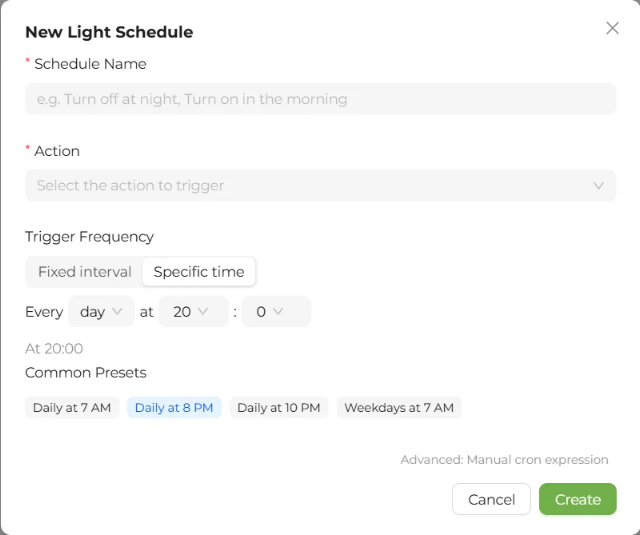
- Press Create. On success, "Schedule created" is shown. A new schedule is enabled by default.
Page columns
The light schedule has a table view only:
| Column | Description |
|---|---|
| Name | Shows "Unnamed" if there is no name |
| Action | "Turn On" (gold) or "Turn Off" (gray) |
| Trigger Frequency | Described in words |
| Next Run | Shown in the device time zone; shows "Paused" when disabled |
| Status | Enable / disable switch |
| Actions | Edit, Delete |
After adding or changing a schedule, the light changes right away
After you add, change, enable, disable or delete a light schedule, the system immediately corrects the light's state based on "whether the most recent event that should have happened by now is turning on or turning off".
Example: at 9 PM you add "turn off daily at 8 PM". Because the light should already have been turned off at 8 PM today, the light turns off right away.
This is by design, to keep the light's state consistent with the schedule.
The light turns on right away after you create your first "Turn On" schedule
When you create light schedules for the first time, if you create a "Turn On" schedule first, the light turns on immediately, whether or not that schedule is enabled, and stays on until you create the matching "Turn Off" schedule. When setting up for the first time, we recommend creating the "Turn On" and "Turn Off" schedules together in one go.
After all light schedules are disabled
- The light stays in the state last set by a schedule and doesn't change right away.
- The light bulb icon can switch the light by hand again.
- At the next restart, the light is set to the last state you set by hand (which may differ from the current state).
Sleep and light schedules
- Sleep doesn't turn the light off: if the light is on when the device goes to sleep, it stays on during sleep. To save power, turn the light off by hand first, or set up a Turn Off schedule.
- Light schedules also wake a sleeping device automatically before they trigger.
- Light events missed during sleep are not run afterward; when the device wakes up, it corrects the light to the state it should be in at that time.
Tips
Set one Turn On and one Turn Off schedule to form a complete daily cycle.
Don't set Turn On and Turn Off for the same minute; the result is unpredictable.
When you edit and save a disabled light schedule, it stays disabled and doesn't re-enable itself.
Messages
| Message | Meaning |
|---|---|
| Schedule created / Schedule updated / Schedule deleted | The action succeeded |
| Schedule enabled / Schedule paused | The enabled state was switched successfully |
| Creation failed / Update failed | Saving failed; a common cause is an invalid cron expression in advanced mode |
| Please enter a schedule name / Please select turn on or turn off | A required field is empty |
| Please fix the cron expression | The frequency setting is invalid |
| Operation failed / Deletion failed | The action failed; reload the page and try again |
Related: Image change frequency in detail, Sleep and wake-up, Models and specifications