
Tcon firmware update
Navigation: Settings → System → Tcon Firmware (the page title is "Tcon Firmware Management")
Tcon is the panel's driver control board. It converts images into signals the panel can display. Tcon firmware and software update are two different things:
| Tcon firmware | Software update (OTA) | |
|---|---|---|
| What it updates | Panel driver board | Management program and management interface |
| File format | .bin | .tar.gz |
| When it's needed | Only when the manufacturer tells you to | When a new version is available |
Update only when the manufacturer tells you to
Tcon firmware is closely tied to the panel model. The wrong firmware can stop the panel from displaying properly. Update only when the manufacturer or technical support tells you to, and use the file they provide.
Check the current version
When you open the page, the "Version Number" is read and shown automatically.
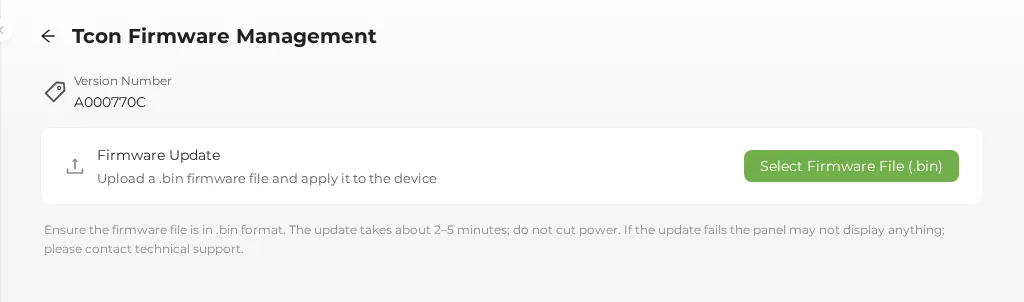
| Shown | Meaning |
|---|---|
| Version Number | The current Tcon firmware version |
| Unknown | The version information can't be read |
| Read Failed | An error occurred while reading (along with "Failed to read firmware version") |
The current version is also shown as "Tcon Firmware Version" in Device info.
Update steps
- Write down the current firmware version.
- In the "Firmware Update" row, tap Select Firmware File (.bin) and choose the file provided by the manufacturer.
- If the file isn't a
.binfile, you'll see "Only .bin firmware files are accepted".
- If the file isn't a
- In the confirmation window "Confirm Firmware Update: About to upload firmware file: file name", with the red reminder "Do not interrupt power or operate the device during the update", tap Confirm Update.
- "Updating firmware, please wait..." appears. This takes about 2–5 minutes.
- On success you'll see "Firmware update successful" and the version number is read again; on failure you'll see the reason or "Firmware update failed".
- After the update, go to the image display page and display an image to check that the panel works properly.
During the update
- Don't cut the power or close the page.
- Don't display images, clear the screen, or do anything similar.
- The update takes at most about 5 minutes.
After the update
- The available refresh modes depend on the panel model (Tcon firmware version). The device reads the panel model again right after the update. See Scan direction and refresh mode.
- If the panel displays incorrectly after the update, contact technical support right away and provide the version numbers from before and after the update.
Notes
The page says: "Ensure the firmware file is in .bin format. The update takes about 2–5 minutes; do not cut power. If the update fails the panel may not display anything; please contact technical support." After updating, always check the actual image on the panel instead of relying only on the "update successful" message.
Related sections: Device info and monitoring, Scan direction and refresh mode