
2. Connect with your phone
Scan two QR codes with your phone to open the device's management interface.
What you need
- A phone that supports 5 GHz Wi-Fi (most phones from recent years do).
- The device is on and shows QR codes on the screen.
Steps
- Open your phone's camera and scan the step 1 QR code on the device's screen to join the device's Wi-Fi.
- When your phone shows it's connected, scan the step 2 QR code to open the management interface.
- You can also type
http://192.168.100.1into your phone's browser.
- You can also type
- If your phone says "No internet", choose Use without internet / Stay connected.
- When you see the "Image Display" page, you're connected.
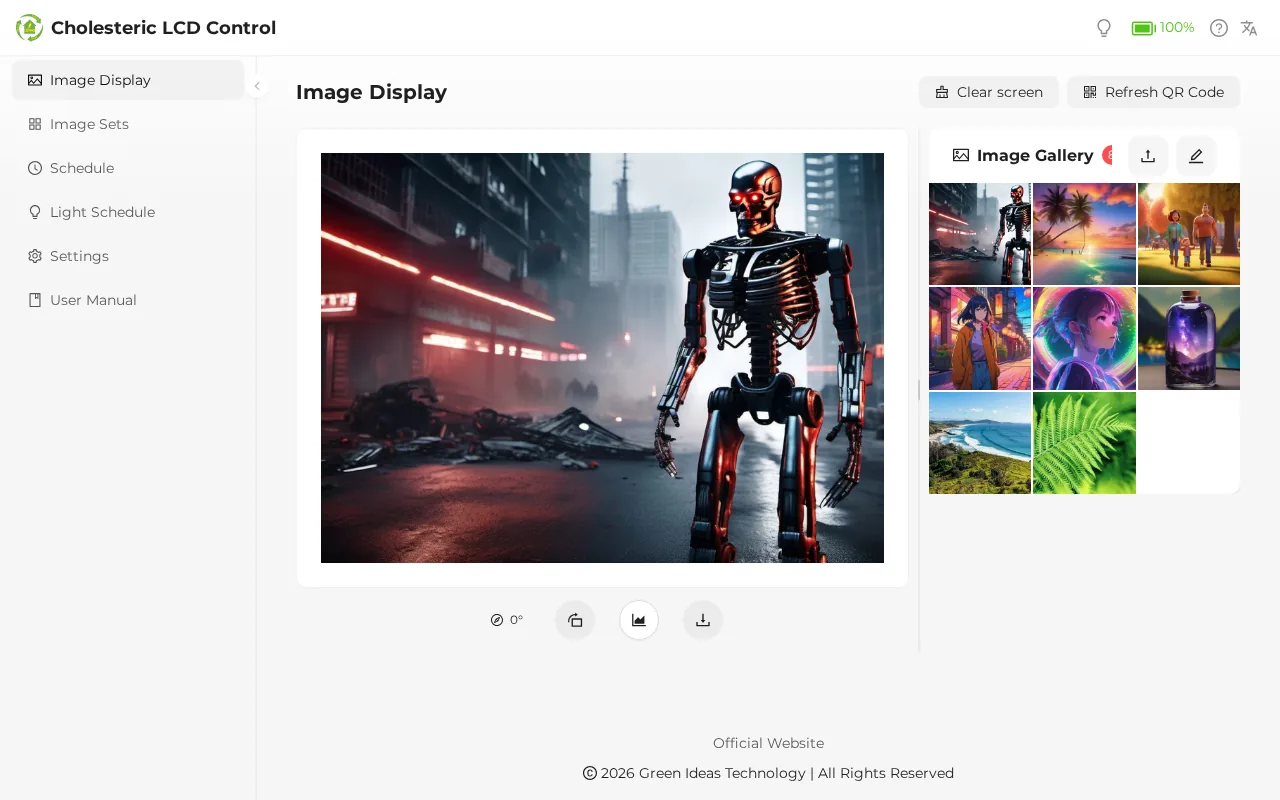
No QR code on the device?
Hold either physical button for about 1.5 seconds and let go as soon as the QR code appears. If the device is asleep (status LED off), press a button once to wake it up, wait a few seconds, then scan.
Your phone keeps switching to another Wi-Fi?
The device's Wi-Fi has no internet, so some phones switch back to another network automatically. Go back to your phone's Wi-Fi settings, select the device's Wi-Fi again and choose Stay connected.
Want to use your company network?
For the first setup, connect to the device with your phone. Later, to have the device join the on-site Wi-Fi, see On-site Wi-Fi; for the differences between the network modes, see The three network modes.
The device has no built-in network port. If you need a wired network connection on site, a USB-to-network (RJ45) adapter has to be added; please contact the manufacturer or your dealer.
After you switch networks, the way your phone gets back to the management interface changes. Read How each switch affects your phone first.
Next: 3. Put an image on the device
Learn more: Connecting to the device, Startup screen and screen language, Troubleshooting: connection and management interface